
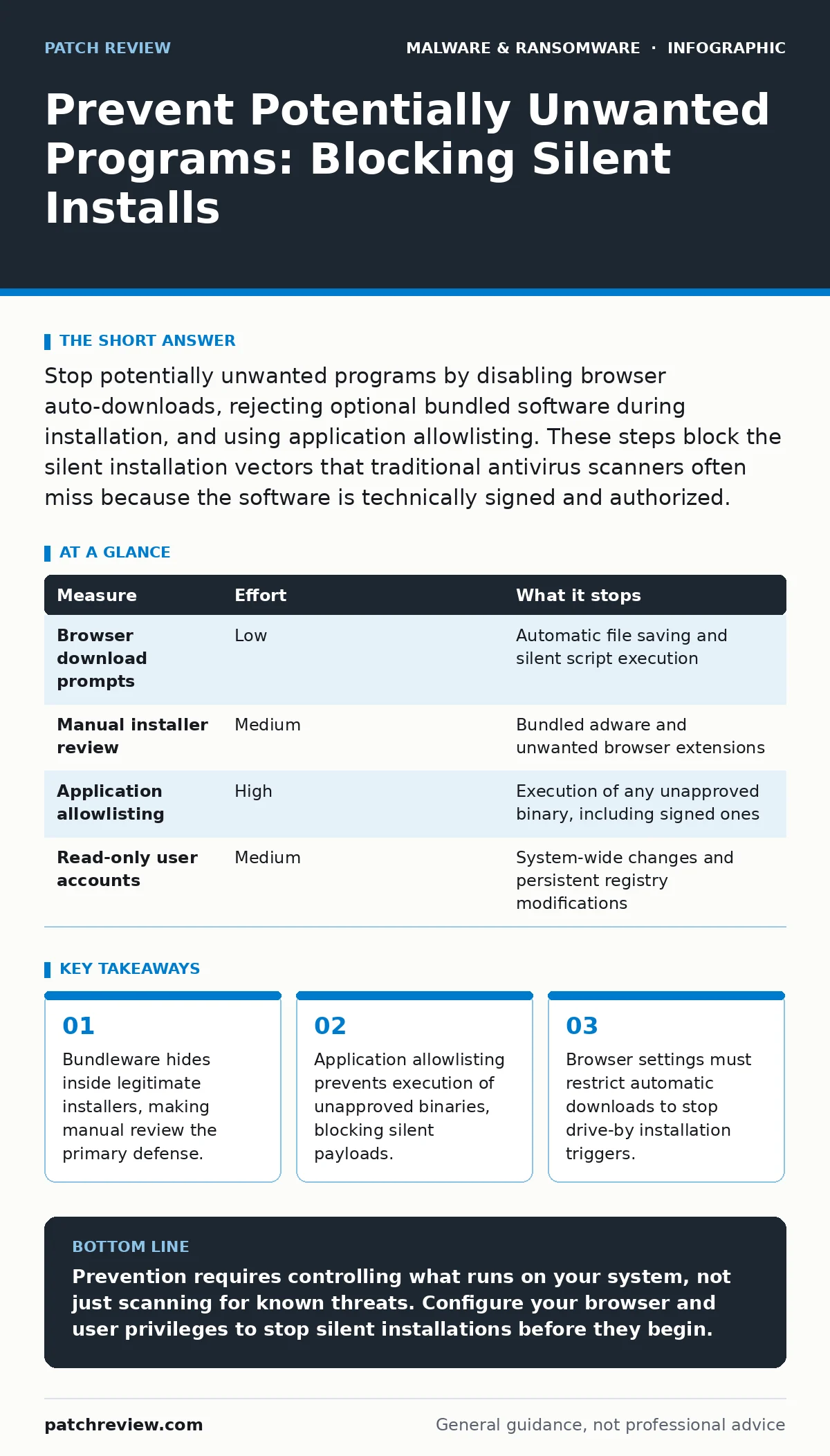
Stop potentially unwanted programs by disabling browser auto-downloads, rejecting optional bundled software during installation, and using application allowlisting. These steps block the silent installation vectors that traditional antivirus scanners often miss because the software is technically signed and authorized.
The Bundling Trap
You rarely download potentially unwanted programs directly. You download a legitimate tool, and the installer offers to install extra software alongside it. This practice, known as bundling, is the primary delivery method for adware and toolbar extensions. The installer presents a series of screens that assume you will click "Next" without reading.
The extra software is often hidden behind small checkboxes or grayed-out text. It may be labeled as a "recommended" optimization or a "partner offer." When you accept these terms, you grant the software permission to modify your browser homepage, inject advertisements, and collect browsing data. This is not a hack. It is a consent-based installation that your security software views as legitimate.
The danger lies in the accumulation of these small changes. Each added extension consumes system resources and increases the attack surface. Over time, the browser slows down, and the risk of encountering malicious redirects rises. You must treat every installer as a contract that requires careful review.
Browser Download Controls
Modern browsers often download files automatically when you click certain links. This convenience creates a pathway for drive-by downloads, where a file lands on your disk before you realize it. If the file has a legitimate extension, such as a document or image, it may execute a script or macro when opened.
You must configure your browser to ask where to save each file before downloading it. This simple setting breaks the automation chain. It forces you to pause and consider whether you expected that specific file. You should also disable the feature that automatically opens PDFs or other documents after they are downloaded.
Imagine you click a link to a technical manual. The site hosts a malicious PDF that exploits a vulnerability in your reader. If the browser auto-opens it, the exploit runs immediately. If the browser saves it to a downloads folder, you have time to inspect the file or delete it. This pause is your first line of defense against silent execution.
Application Allowlisting
Traditional antivirus software relies on signatures, which are patterns of known malware. It struggles with potentially unwanted programs because they are often signed by legitimate developers. Allowlisting, also known as application whitelisting, takes the opposite approach. It blocks every program except those you explicitly approve.
This method prevents execution of any binary that is not on the approved list. If a bundled adware component tries to run, the system denies it permission. This is highly effective against drive-by downloads and compromised installers. However, it requires initial setup and maintenance. You must define which applications are allowed to run on your system.
For personal use, this can be achieved through strict user account control settings. For enterprise environments, dedicated allowlisting solutions provide granular control. The trade-off is convenience. You may occasionally block a legitimate tool if it is not on the list. But this friction is a feature, not a bug. It stops unauthorized code from running.
| Measure | Effort | What it stops |
|---|---|---|
| Browser download prompts | Low | Automatic file saving and silent script execution |
| Manual installer review | Medium | Bundled adware and unwanted browser extensions |
| Application allowlisting | High | Execution of any unapproved binary, including signed ones |
| Read-only user accounts | Medium | System-wide changes and persistent registry modifications |
The Illusion of Security Suites
Many users believe that installing a full security suite provides immunity from unwanted software. This is a dangerous misconception. Security suites focus on known threats and network intrusion. They often allow bundled software to install because it does not match a malware signature.
The software may even be signed with a valid digital certificate from a reputable vendor. The security suite sees a valid signature and permits the installation. You are left with adware that tracks your activity and slows your system. This highlights the limitation of signature-based detection. It cannot distinguish between a good program and a bad one if both are signed correctly.
You must understand that security is layered. No single tool catches everything. The goal is to reduce the attack surface through configuration, not just detection. This approach aligns with the principles discussed in our guide on malware persistence mechanisms, where attackers seek to maintain access even after detection. Preventing the initial install is far easier than removing persistent components.
Managing User Privileges
Standard user accounts have limited permissions. They cannot install system-wide software or modify critical system files. Running as a standard user forces any installation attempt to prompt for an administrator password. This prompt serves as a checkpoint.
If you do not initiate the installation, you will not see the prompt. This stops silent installations triggered by scripts or background processes. It also prevents malware from installing itself without your explicit consent. You should create a standard user account for daily tasks and reserve the administrator account for maintenance.
This separation of duties is a fundamental security practice. It ensures that even if a malicious script runs, it cannot elevate its privileges without your intervention. It complements the strategies outlined in our guide on fileless malware, which often exploits legitimate system tools. By restricting what those tools can do, you limit the damage.
The Cost of Convenience
Potentially unwanted programs thrive on convenience. They offer quick fixes, free tools, and easy access to content. They exploit the user's desire to save time. The trade-off is control. You give up control over your browser, your system performance, and your privacy.
The hidden cost is not just slow performance. It is the data collected by these programs. They track your browsing habits, search queries, and sometimes more sensitive information. This data is often sold to third parties. You are trading your privacy for a free tool or a convenient shortcut.
Consider the impact of cryptojacking, where hidden scripts use your computer's resources to mine cryptocurrency. While not always classified as a traditional PUP, the mechanism is similar. It hides within legitimate-looking code and consumes resources without your knowledge. The prevention is the same: scrutinize what you run and restrict what can run.
What Does Not Work
Uninstalling software does not always remove it completely. Many potentially unwanted programs install additional components, such as browser extensions or background services. These components may remain active even after the main program is removed. You must check your browser extensions and installed services separately.
Disabling cookies does not stop these programs. They use other methods to track you, such as fingerprinting your browser configuration. Clearing your cache may remove some tracking data, but it does not prevent the software from reinstalling itself if the core components remain. You must use the uninstaller and then verify that no remnants exist.
Closing Checklist
You can reduce your exposure to potentially unwanted programs today. These steps require minimal effort but provide significant protection. They focus on prevention rather than detection.
- Configure your browser to ask where to save files before downloading.
- Review your browser extensions and remove any you do not recognize.
- Set your daily user account to a standard, non-administrator role.
These actions shift the burden from detection to prevention. They force you to engage with every installation and download. This engagement is the most effective defense against the silent infiltration of unwanted software.
Key takeaways
- Bundleware hides inside legitimate installers, making manual review the primary defense.
- Application allowlisting prevents execution of unapproved binaries, blocking silent payloads.
- Browser settings must restrict automatic downloads to stop drive-by installation triggers.
Prevention requires controlling what runs on your system, not just scanning for known threats. Configure your browser and user privileges to stop silent installations before they begin.
Frequently asked questions
How do I know if a program is potentially unwanted?
Look for programs that change your browser homepage, add toolbars you did not request, or run silently in the background. If you did not explicitly install it, it is unwanted.
Can antivirus software remove potentially unwanted programs?
Some can, but many do not because the software is technically legitimate. You may need to manually uninstall the program and remove associated browser extensions.
Is it safe to use free software?
Free software can be safe, but it often includes bundled offers. You must carefully read every step of the installation process and decline optional additions.
Why do these programs keep coming back after I delete them?
They often install multiple components. If you miss one, such as a browser extension or a scheduled task, it can reinstall the main program. You must remove all associated files.
How this guide was produced: written by the Patch Review editorial team with AI assistance, checked against the public references listed below, and reviewed when the facts change. See our editorial policy or report an error.