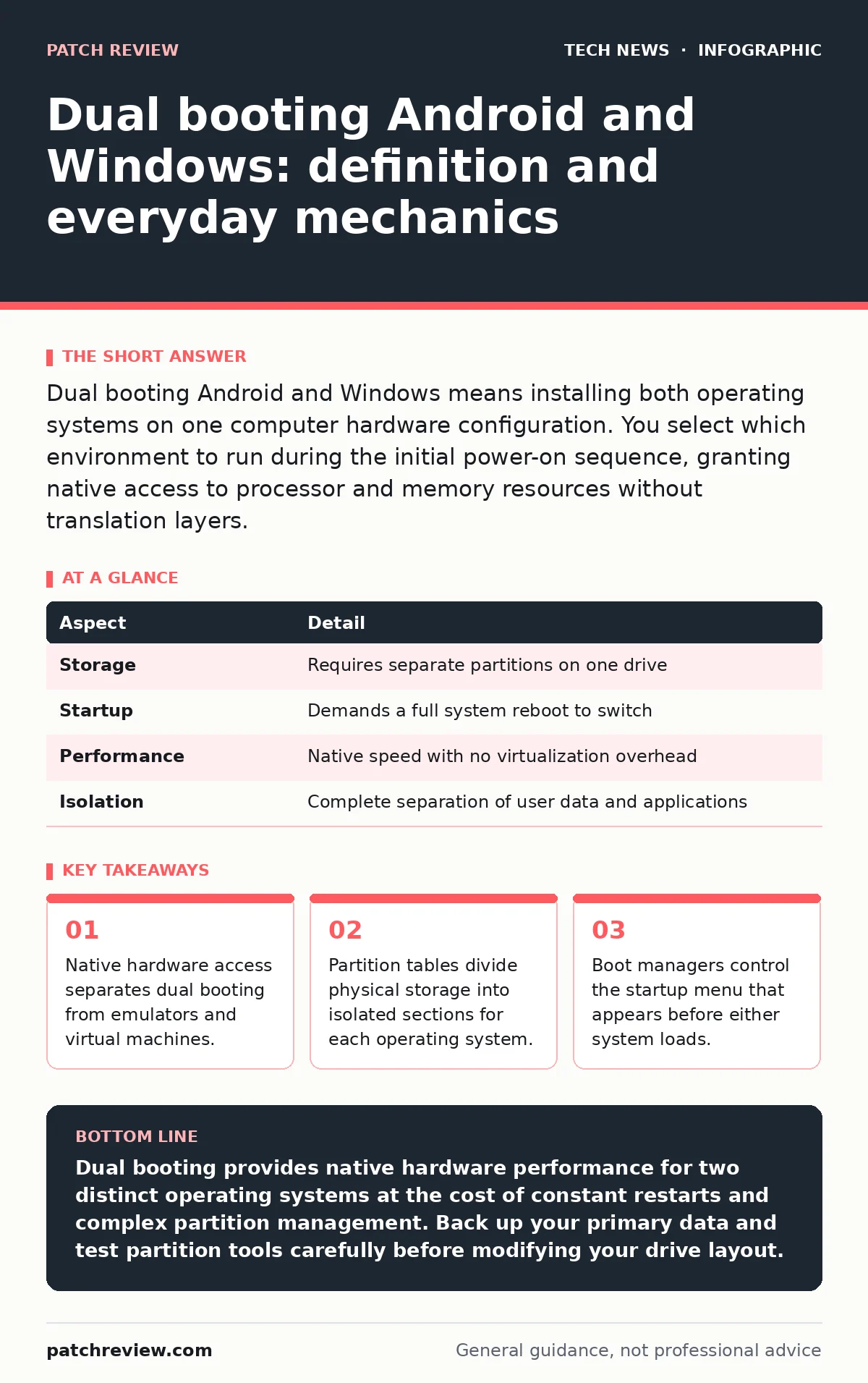
Dual booting Android and Windows means installing both operating systems on one computer hardware configuration. You select which environment to run during the initial power-on sequence, granting native access to processor and memory resources without translation layers.
Dual booting Android and Windows defined
Dual booting Android and Windows creates a single physical computer capable of running either operating system from separate storage partitions. Partitioning divides your hard drive into distinct logical volumes, allowing two completely different software environments to coexist on identical hardware components.
Operating systems manage hardware directly through device drivers, which are specialized software modules. When you run Android natively alongside Windows, the hardware executes instructions written specifically for mobile processors or desktop chips depending on the active partition.
This direct execution path provides maximum processing speed and graphic performance. However, native execution means neither operating system can inspect or modify files on the other partition easily, due to differing file system formats.
Origins of multi-boot configurations
Multi-boot configurations originated in enterprise server environments where administrators needed to test software across different operating system releases on identical hardware. Mainframe computers required partition switches to allocate resources for distinct tasks without purchasing separate hardware units for every application workload.
Desktop enthusiasts eventually adopted these enterprise boot management techniques to experiment with alternative operating systems without discarding their primary desktop environments. Early personal computers relied on simple boot sector code to hand off control to a specific partition when the machine powered on.
Modern computers use unified extensible firmware interface firmware to manage startup routines and security certificates before any operating system loads. This firmware reads a boot manager menu, presenting a text or graphical selection screen that waits for your manual input.
Daily usage patterns and workflows
Daily usage of a dual boot system requires a complete computer restart every time you switch between operating systems. You cannot run mobile apps natively inside Windows through this method, nor can you access Windows desktop software while Android is active.
Productivity workflows must accommodate this rigid boundary between environments. Writers and developers often use Windows for heavy compilation tasks, then reboot into Android to test mobile applications on actual hardware rather than relying on virtual machines.
File sharing between the two partitions requires a neutral storage medium, such as an external drive formatted with a universally readable file system. Internal partition boundaries prevent seamless drag-and-drop operations between your mobile workspace and your desktop documents.
| Aspect | Detail |
|---|---|
| Storage | Requires separate partitions on one drive |
| Startup | Demands a full system reboot to switch |
| Performance | Native speed with no virtualization overhead |
| Isolation | Complete separation of user data and applications |
Hardware constraints and driver hurdles
Hardware constraints often disrupt dual boot stability because mobile operating systems expect touchscreens, specific sensor arrays, and battery management chips common in phones. Desktop computers use different motherboard architectures, forcing developers to patch open-source Android ports to recognize standard keyboards, mice, and graphics cards.
Power management creates frequent friction in these setups. Sleep states and thermal controls managed by Windows do not translate automatically to mobile partitions, leading to overheating or rapid battery drain on laptops running Android natively.
Audio routing and wireless networking drivers also demand careful configuration. Standard desktop Wi-Fi adapters may lack functional mobile drivers, leaving you without internet access until community-built patches are applied to the secondary partition.
Security boundaries and encryption friction
Security boundaries in dual boot systems depend entirely on how each partition handles disk encryption and authentication credentials. Windows relies on specialized security chips to protect your files, while mobile partitions use different cryptographic implementations for user verification.
Enabling full disk encryption on one partition can complicate the boot manager configuration if software updates overwrite the primary startup records. You must understand how cookies and sessions behave differently when transitioning between mobile browsers and desktop applications on the same physical machine.
Software updates present another hidden cost in these setups. A routine patch applied to your desktop operating system can inadvertently erase the boot manager, locking you out of the secondary partition until you repair the startup sequence manually.
Why traditional virtualization differs
Traditional virtualization runs one operating system inside another as a guest application, using software abstraction layers to simulate hardware components. Dual booting bypasses virtualization entirely, granting the active operating system direct, unmediated control over the central processing unit and graphics hardware.
Virtual environments let you run mobile apps in a window on your desktop without rebooting, trading raw performance for multitasking convenience. Choosing between these approaches depends on whether you need maximum hardware speed or instant access to both software ecosystems simultaneously.
Performance benchmarks consistently favor native multi-boot configurations for resource-intensive tasks like gaming or hardware compilation. Yet the administrative overhead of maintaining two separate operating system installations often outweighs the raw speed advantage for casual users.
Key takeaways
- Native hardware access separates dual booting from emulators and virtual machines.
- Partition tables divide physical storage into isolated sections for each operating system.
- Boot managers control the startup menu that appears before either system loads.
Dual booting provides native hardware performance for two distinct operating systems at the cost of constant restarts and complex partition management. Back up your primary data and test partition tools carefully before modifying your drive layout.
Frequently asked questions
Can I access my Windows files while running Android in a dual boot setup?
Direct access is usually limited because Windows and Android use incompatible file systems for internal storage. You need a shared external drive or a neutral third partition formatted for cross-platform compatibility to move files between them.
Does dual booting slow down my computer?
Dual booting does not reduce performance because each operating system runs natively on the hardware without virtualization overhead. The only performance cost is the time spent restarting the computer to switch between environments.
What happens to my data if I delete the Android partition?
Deleting the partition frees up storage space, but it often leaves the boot manager pointing to a missing operating system. You must repair the master boot records to restore normal startup behavior for your remaining operating system.
Why do mobile operating systems struggle with desktop hardware?
Mobile systems are engineered for specific components like integrated touch controllers and mobile graphics chips found in phones. Desktop motherboards use different bus architectures and peripherals that require custom driver modifications to function properly.
How this guide was produced: written by the Patch Review editorial team with AI assistance, checked against the public references listed below, and reviewed when the facts change. See our editorial policy or report an error.