
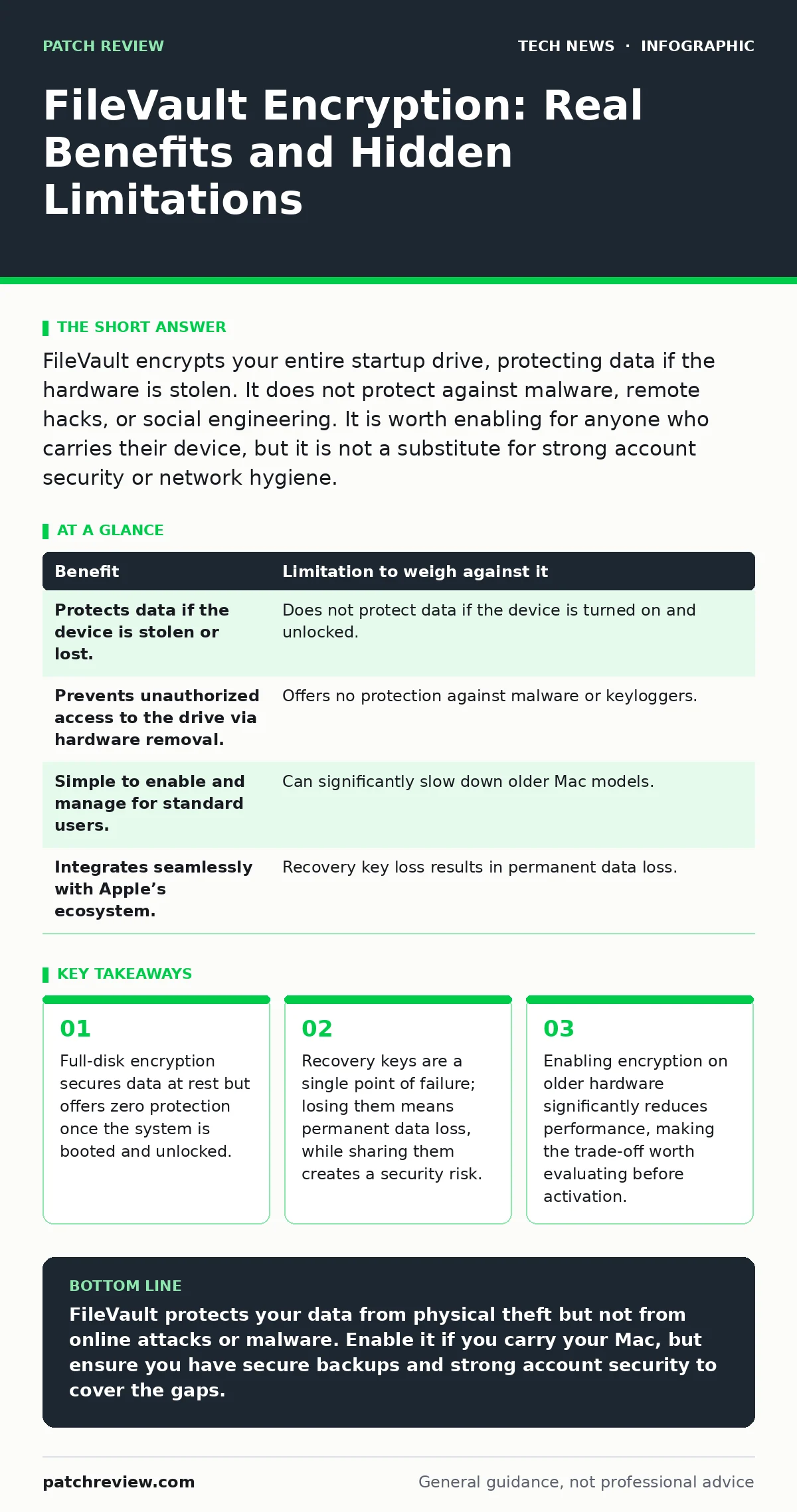
FileVault encrypts your entire startup drive, protecting data if the hardware is stolen. It does not protect against malware, remote hacks, or social engineering. It is worth enabling for anyone who carries their device, but it is not a substitute for strong account security or network hygiene.
The Mechanics of Full-Disk Encryption
FileVault is Apple’s implementation of full-disk encryption. It encrypts every file on your startup volume, including system files, user data, and temporary caches. The encryption uses the XTS-AES-128 algorithm in two-pass mode, which is a standard method for securing stored data. When you turn off your computer, the data remains unreadable without the correct decryption key.
The key management relies on your user account password. When you log in, the system decrypts the necessary portions of the drive to allow the operating system to function. This process happens transparently. You do not need to manually encrypt or decrypt individual files. The system handles the cryptographic operations in real-time, using hardware acceleration available on modern Mac processors.
This mechanism ensures that if someone physically removes the drive from your Mac and connects it to another computer, they see only scrambled data. They cannot copy your documents, photos, or browser history. The security boundary here is the hardware boundary. As long as the drive remains in the machine and the machine is off, the data is safe from direct physical access.
Physical Theft and Data Recovery
The primary benefit of FileVault is protection against physical theft. Imagine you leave your laptop on a train. A finder can open the lid, but they cannot access your files. They can wipe the drive and resell the hardware, but they cannot extract your personal information. This stops identity theft and corporate espionage that relies on stealing hardware.
Without encryption, a thief with basic technical skills can boot your Mac into recovery mode or remove the drive to copy everything. This is a low-effort attack with high rewards. FileVault raises the barrier to entry. The attacker now needs your password or your recovery key. Without either, the data is mathematically inaccessible.
This protection extends to cloud backups and local backups if they are also encrypted. If you use Time Machine, for example, the backup drive should also be encrypted. Otherwise, you have secured your main drive but left a copy of your data on an external drive that might be less secure. Consistency in encryption practices is necessary for effective protection.
The Illusion of Total Security
FileVault does not protect your data while the computer is running. Once you log in, the encryption keys are loaded into the computer’s memory. Any malware or attacker with administrative access can read your files. They can install keyloggers to capture your passwords as you type them. They can take screenshots of your sensitive documents.
This is a critical limitation. Many users believe that having FileVault enabled means their computer is secure from hackers. This is incorrect. FileVault only protects against offline attacks. It does nothing to stop online threats, such as phishing emails, malicious websites, or network-based intrusions. You must still practice good security hygiene to protect your system while it is awake.
Consider the scenario of a compromised remote work setup. If an attacker gains access to your network, they might exploit a vulnerability in your software to execute code on your Mac. FileVault will not stop this. The attacker can interact with your system as if they were you. You need additional layers of defense, such as those discussed in guides on remote work security, to mitigate these risks.
| Benefit | Limitation to weigh against it |
|---|---|
| Protects data if the device is stolen or lost. | Does not protect data if the device is turned on and unlocked. |
| Prevents unauthorized access to the drive via hardware removal. | Offers no protection against malware or keyloggers. |
| Simple to enable and manage for standard users. | Can significantly slow down older Mac models. |
| Integrates seamlessly with Apple’s ecosystem. | Recovery key loss results in permanent data loss. |
Performance Costs and Hardware Constraints
Encryption requires computational power. Every time the system reads or writes data, it must encrypt or decrypt it. On modern Macs with Apple Silicon or recent Intel processors, this overhead is negligible. The hardware includes dedicated cryptography engines that handle the work efficiently. You will notice no difference in speed.
However, on older Macs, the impact can be severe. The CPU must work harder to process the encryption. This can lead to slower file transfers, longer boot times, and reduced battery life. If you are using a Mac from more than a decade ago, enabling FileVault might make the computer unusable for daily tasks.
Before enabling FileVault, check your system specifications. If your Mac supports hardware-accelerated encryption, the performance hit will be minimal. If it relies on software encryption, you should weigh the security benefits against the usability costs. For many users, the convenience of a fast, responsive machine outweighs the theoretical risk of physical theft.
The Critical Role of Recovery Keys
When you enable FileVault, the system generates a recovery key. This is a long string of characters that can unlock your drive if you forget your password. You must save this key in a secure location. If you lose your password and your recovery key, your data is gone forever. Apple cannot recover it for you.
Many users write this key down and leave it on their desk. This defeats the purpose of encryption. If a thief steals your Mac and finds the recovery key, they can bypass your password. You should store the recovery key in a password manager or write it on paper and keep it in a safe deposit box.
Alternatively, you can use an iCloud account to unlock the drive. This is more convenient but introduces a dependency on Apple’s infrastructure. If your Apple account is compromised, an attacker could potentially access your drive. You must balance convenience with security. For high-security environments, using a local recovery key stored offline is the safer choice.
See also: Domain Name System vs Domain Name Server: The Exact Difference
When It Is Worth It
FileVault is worth enabling if you carry your Mac outside your home. Laptops are frequently lost or stolen. In these cases, the risk of physical access to your data is real. Encryption provides a strong defense against this specific threat. It is a low-effort measure with a high payoff for mobile devices.
It is also worth enabling if your Mac contains sensitive business or personal data. Even if you rarely leave the house, accidents happen. A drive failure, a fire, or a burglary could expose your data. Encryption ensures that your data remains private even if the hardware is compromised. For most users, the security benefit outweighs the minor inconvenience of enabling it.
If you use your Mac for remote work, enabling FileVault is often a requirement. Many organizations have strict policies regarding data protection. Check your company’s bring your own device policies to see if encryption is mandatory. Failing to comply could result in disciplinary action or loss of access to corporate resources.
When It Is Not Worth It
FileVault may not be worth it if you use a very old Mac. The performance degradation can make the computer frustrating to use. If your primary goal is to keep the machine running smoothly for basic tasks, disabling encryption might be the better choice. You can mitigate the risk by keeping the computer in a secure location.
It is also not worth it if you do not have a reliable backup strategy. If you lose your password and recovery key, you lose everything. If you do not have recent backups, the risk of data loss is too high. Ensure you have a robust backup plan before enabling FileVault. This includes regular backups to an external drive or cloud service.
Finally, do not rely on FileVault as your only security measure. It does not protect against online threats. If you are not practicing good security habits, such as using strong passwords and keeping your software updated, FileVault will not save you. You need a holistic approach to security, including measures for home router security and regular software updates.
Key takeaways
- Full-disk encryption secures data at rest but offers zero protection once the system is booted and unlocked.
- Recovery keys are a single point of failure; losing them means permanent data loss, while sharing them creates a security risk.
- Enabling encryption on older hardware significantly reduces performance, making the trade-off worth evaluating before activation.
FileVault protects your data from physical theft but not from online attacks or malware. Enable it if you carry your Mac, but ensure you have secure backups and strong account security to cover the gaps.
Frequently asked questions
Does FileVault slow down my Mac?
On modern Macs, the performance impact is negligible due to hardware acceleration. On older models, you may notice slower file operations and reduced battery life.
Can Apple recover my data if I lose my password?
No. Apple does not store your FileVault encryption key. If you lose both your password and your recovery key, your data is permanently inaccessible.
Does FileVault protect my Time Machine backups?
FileVault only encrypts your startup drive. You must separately encrypt your Time Machine backup drive to protect that data from physical theft.
Is FileVault enough to secure my Mac?
No. FileVault only protects data at rest. You still need to protect against online threats, malware, and social engineering with other security measures.
How this guide was produced: written by the Patch Review editorial team with AI assistance, checked against the public references listed below, and reviewed when the facts change. See our editorial policy or report an error.