
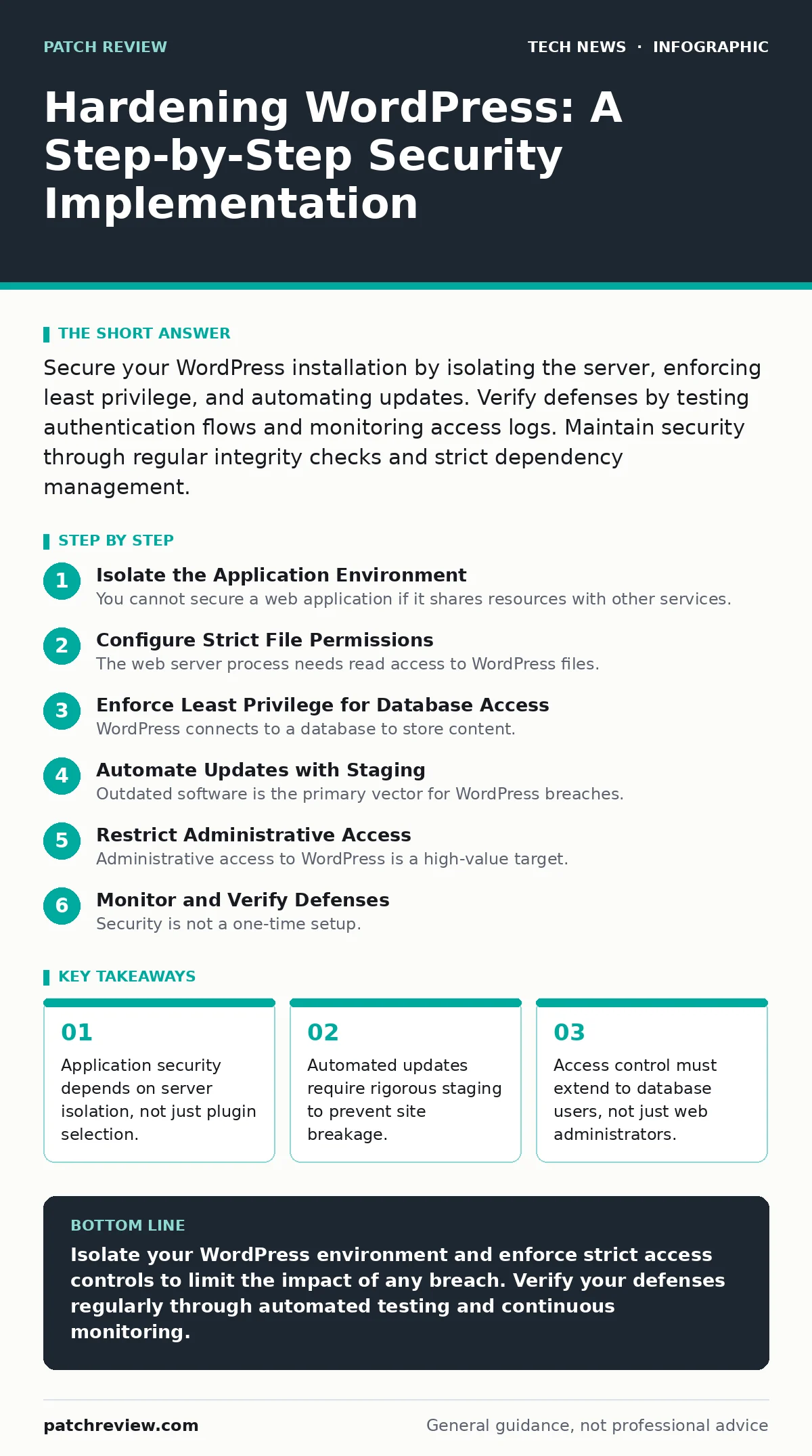
Secure your WordPress installation by isolating the server, enforcing least privilege, and automating updates. Verify defenses by testing authentication flows and monitoring access logs. Maintain security through regular integrity checks and strict dependency management.
Isolate the Application Environment
You cannot secure a web application if it shares resources with other services. WordPress runs on a web server, a database, and a file system. If an attacker compromises the PHP interpreter, they may access other applications on the same machine. You must run WordPress in a dedicated environment. This could be a virtual private server, a container, or a dedicated virtual machine.
Do not install WordPress on the same server as your email gateway or DNS resolver. These services have different attack surfaces. A vulnerability in one service should not grant access to the other. This separation limits the blast radius of any breach. It ensures that a compromise of the web interface does not immediately expose your entire infrastructure.
Imagine a scenario where a plugin has a remote code execution flaw. If the web server runs with root privileges, the attacker gains full control of the machine. If the server runs with limited privileges, the attacker is confined to the application directory. This containment is your first line of defense. It buys you time to detect and respond to the intrusion.
Configure Strict File Permissions
The web server process needs read access to WordPress files. It does not need write access. Write access allows an attacker to modify configuration files or inject malicious scripts. You must set file permissions so that the web server can read files but cannot write to them. Only the application user should have write access to specific directories like uploads.
Set directory permissions to 750 and file permissions to 640. This allows the owner to read, write, and execute directories, and the group to read and execute. Others have no access. This prevents public users on the server from reading your configuration files. It also prevents the web server from modifying core files during an attack.
Verify this by attempting to write a test file to the root directory using the web server user. The operation should fail. If it succeeds, your permissions are too loose. Tighten them until the web server can only read the files it needs to serve. This step is often overlooked but prevents many common injection attacks.
Enforce Least Privilege for Database Access
WordPress connects to a database to store content. The database user account used by WordPress should have minimal permissions. It should only be able to select, insert, update, and delete rows in the WordPress tables. It should not be able to create or drop tables. It should not be able to modify other databases.
Create a dedicated database user for WordPress. Do not use the root database account. This is a common mistake that gives attackers administrative access to the entire database server. If the application is compromised, the attacker can only manipulate WordPress data. They cannot access other applications or system data.
Test this by attempting to create a new table using the WordPress database credentials. The command should be rejected. If it succeeds, you have granted too much authority. Restrict the user to the specific schema required by WordPress. This limits the damage if the application layer is breached. It ensures that database security is not bypassed by application vulnerabilities.
Automate Updates with Staging
Outdated software is the primary vector for WordPress breaches. Core files, themes, and plugins must be updated regularly. However, automatic updates can break your site if a new version is incompatible with your configuration. You must implement a staging environment that mirrors your production site.
Deploy updates to the staging environment first. Run automated tests to ensure functionality is preserved. Only after successful testing should you deploy to production. This process prevents downtime and ensures that security patches do not introduce new bugs. It balances the need for rapid patching with the need for stability.
Check the staging environment for errors before promoting changes. Use integration tests to verify that forms, payments, and user logins work correctly. If a test fails, roll back the update immediately. Do not push broken code to your live site. This discipline ensures that security improvements do not compromise availability. It is a critical part of DevOps security practices.
Restrict Administrative Access
Administrative access to WordPress is a high-value target. Attackers will attempt to brute-force login credentials or exploit vulnerabilities in the admin interface. You must restrict access to the admin area by IP address or through a reverse proxy. This adds an extra layer of authentication that attackers must bypass.
Use a reverse proxy to filter traffic before it reaches WordPress. This allows you to block known malicious IP ranges and enforce rate limiting. It also hides the WordPress version number from public view. This reduces the information available to attackers. It makes automated scanning less effective.
Verify this by attempting to access the admin login page from an unauthorized IP address. The request should be blocked. If it succeeds, your firewall rules are not configured correctly. Ensure that only trusted networks can reach the administrative interface. This significantly reduces the attack surface. It forces attackers to target the public-facing content instead.
See also: USB Security Dongle: How Hardware Keys Stop Account Takeovers · Domain Name System vs Domain Name Server: The Exact Difference
Monitor and Verify Defenses
Security is not a one-time setup. You must continuously monitor your WordPress installation for signs of compromise. Set up logging for all administrative actions and failed login attempts. Use a security information and event management system to aggregate these logs. This allows you to detect anomalies in real time.
Regularly scan your files for unauthorized changes. Use a file integrity monitoring tool to compare current files against a known good baseline. If a file has been modified, you will be alerted immediately. This helps you detect malware injections or configuration tampering. It provides early warning of a breach.
- Verify that all administrative actions are logged.
- Confirm that failed login attempts trigger alerts.
- Ensure that file integrity checks run daily.
- Test that alerts are received by the security team.
Maintain Secure Dependencies
WordPress relies on third-party plugins and themes. These dependencies introduce additional attack surface. You must vet every plugin for security before installation. Check the code for known vulnerabilities and ensure it is maintained actively. Avoid plugins that have not been updated in a long time.
Remove any plugins that are not essential. Each plugin is a potential entry point for attackers. The fewer plugins you use, the smaller your attack surface. This simplifies maintenance and reduces the risk of compatibility issues. It also makes security auditing more manageable.
Regularly review your plugin list. Remove plugins that are no longer needed. Update remaining plugins to the latest version. This ensures that you benefit from security patches. It also prevents conflicts between different versions. This discipline is key to long-term security. It requires ongoing effort but pays off in reduced risk.
Key takeaways
- Application security depends on server isolation, not just plugin selection.
- Automated updates require rigorous staging to prevent site breakage.
- Access control must extend to database users, not just web administrators.
Isolate your WordPress environment and enforce strict access controls to limit the impact of any breach. Verify your defenses regularly through automated testing and continuous monitoring.
Frequently asked questions
Should I disable file editing in WordPress?
Yes, disable the built-in file editor by adding a constant to your configuration file. This prevents attackers from modifying core files through the admin interface.
How often should I update plugins?
Update plugins as soon as security patches are released. Delaying updates leaves your site vulnerable to known exploits. Automate this process where possible.
Can I use a content delivery network for security?
A CDN can help by blocking malicious traffic and providing DDoS protection. However, it does not replace server-side security measures like file permissions and access controls.
What if I find a vulnerability in a plugin?
Immediately disable the plugin and switch to a maintenance mode. Contact the developer for a patch. If no patch is available, remove the plugin and find a secure alternative.
How this guide was produced: written by the Patch Review editorial team with AI assistance, checked against the public references listed below, and reviewed when the facts change. See our editorial policy or report an error.