
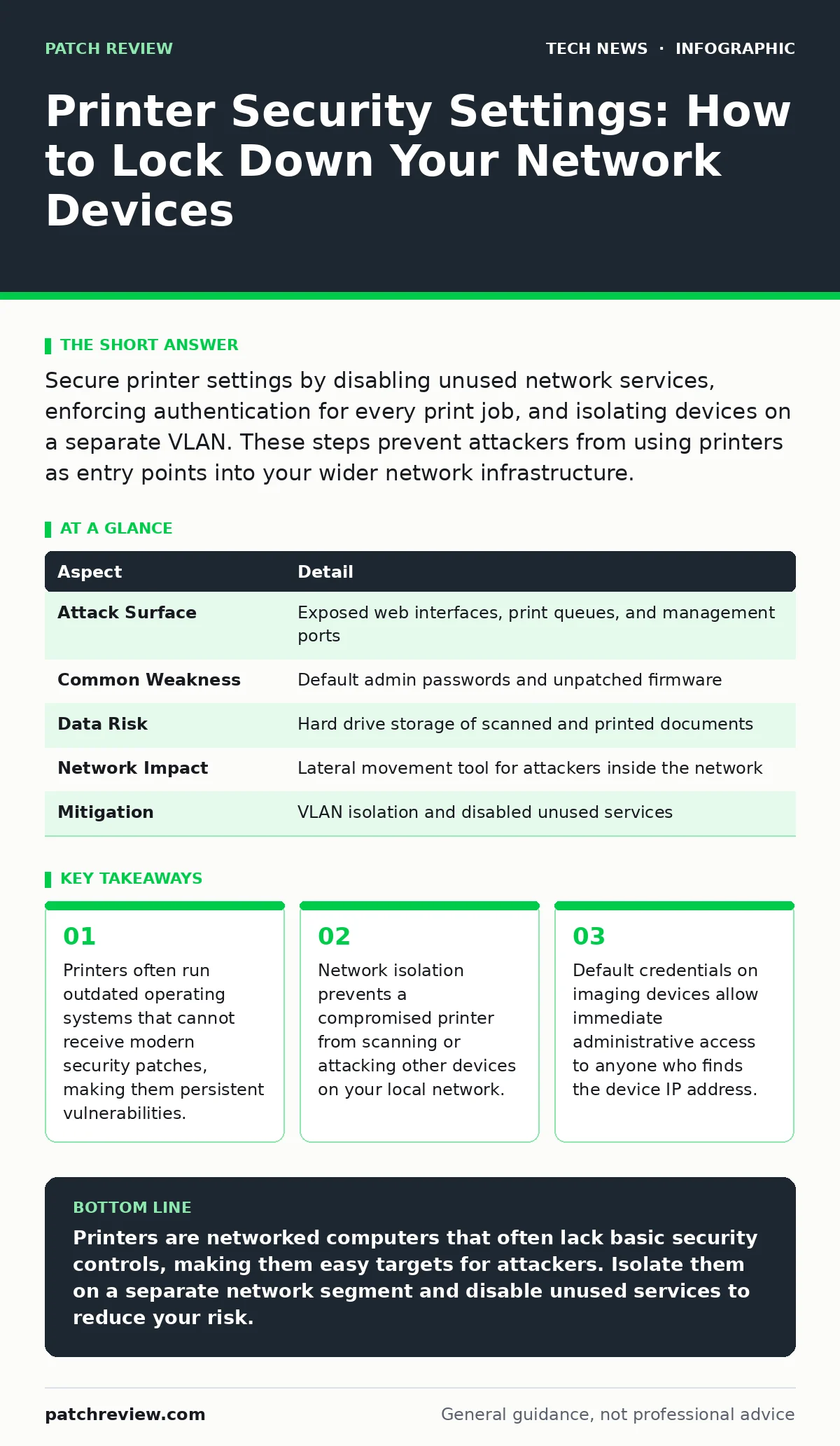
Secure printer settings by disabling unused network services, enforcing authentication for every print job, and isolating devices on a separate VLAN. These steps prevent attackers from using printers as entry points into your wider network infrastructure.
The Network Postcard Analogy
Imagine leaving a postcard on a public table. Anyone who walks by can read your message, copy your address, and even write back to you. Most people treat their network printer like that postcard. They connect it to the same network as their personal computers and assume the firewall protects everything. This assumption fails because printers have unique network behaviors that differ from standard servers or workstations.
Printer security settings refer to the configuration options that control how an imaging device connects to a network, accepts jobs, and stores data. These settings determine whether the device is an open door or a locked room. Unlike a laptop that you carry and lock when away, a printer sits stationary and constantly listens for connections. It processes data from multiple users, stores temporary files in memory, and often runs a simplified operating system with limited security features. Understanding these mechanics is the first step toward reducing risk.
At a Glance: Printer Risk Profile
| Aspect | Detail |
|---|---|
| Attack Surface | Exposed web interfaces, print queues, and management ports |
| Common Weakness | Default admin passwords and unpatched firmware |
| Data Risk | Hard drive storage of scanned and printed documents |
| Network Impact | Lateral movement tool for attackers inside the network |
| Mitigation | VLAN isolation and disabled unused services |
How Printer Security Settings Work
Printers communicate using standard network protocols, but they often expose more services than necessary. A typical network printer runs a small web server for configuration, a print spooler for job processing, and a scanner interface. Each of these services opens a port on the network. If you leave the default printer security settings unchanged, these ports remain open to any device on the local network.
The device firmware, which is the software embedded in the printer’s hardware, manages these connections. Older firmware versions often lack support for modern encryption standards. When you send a document to print, the data travels across the network. If the connection is not encrypted using protocols like HTTPS, anyone monitoring the network traffic can intercept the document contents. This interception is possible even if the data does not leave the building.
Printers also store data. Many models include a hard drive or flash memory to handle large print jobs or to allow users to retrieve forgotten scans. This storage retains copies of documents long after they are printed. If an attacker gains physical access to the device or remote administrative access, they can extract this stored data. The default printer security settings rarely encrypt this storage by default.
Who Is Affected by Weak Configurations
You are affected if you own or manage any network-connected imaging device. This includes home users with wireless printers, small businesses with shared office equipment, and large enterprises with centralized print farms. The risk is not limited to high-value targets. Attackers often scan for printers because they are easy to find and frequently left unsecured.
Imagine a small marketing agency where every employee shares one network printer. An attacker connects to the guest Wi-Fi. Because the printer is on the same network segment as the guest access, the attacker can send a command to the printer’s web interface. They do not need to hack the main server. They only need to exploit the printer’s weak configuration. From there, they can pivot to other devices.
Organizations that rely on cloud printing services face additional risks. These services often require the printer to maintain an outbound connection to a remote server. If the printer security settings allow unrestricted outbound traffic, a compromised device can communicate with a command-and-control server without triggering standard firewall alerts.
What People Usually Get Wrong
Most administrators focus on the computer, not the peripheral. They install antivirus software on laptops and patch operating systems, but they ignore the devices that sit on the desk. This imbalance creates a blind spot. Another common mistake is assuming that disabling wireless printing on the home network makes the device secure. If the printer is connected via Ethernet, it remains exposed to the wired network.
Users often change the Wi-Fi password but leave the printer’s administrative credentials at their factory defaults. The printer’s web interface uses a separate login from the network authentication. If you do not change the admin username and password, anyone who discovers the printer’s IP address can log in and reconfigure the device. They can redirect scans to their own email address or install malicious firmware.
Another error is neglecting to update firmware. Printer manufacturers release updates to fix security holes. Many devices are set to never update automatically. You must manually check for updates or configure the device to update from a trusted internal source. Relying on the manufacturer’s cloud update service can introduce risks if the printer’s outbound connections are not monitored.
| Common Misconception | Reality |
|---|---|
| "It’s just a printer." | It is a networked computer with a web server and storage. |
| "The firewall protects it." | Firewalls often allow print traffic, bypassing deep inspection. |
| "Wireless off means secure." | Wired connections still expose management interfaces. |
| "Updates are automatic." | Many devices require manual firmware validation and installation. |
See also: USB Security Dongle: How Hardware Keys Stop Account Takeovers · Domain Name System vs Domain Name Server: The Exact Difference
Configuring Secure Printer Security Settings
Start by isolating the printer on a separate VLAN, or Virtual Local Area Network. This virtual network segment separates the printer from user workstations and servers. Even if the printer is compromised, the attacker cannot directly access the main network. You must configure firewall rules to allow only necessary traffic, such as print jobs from authorized workstations, to pass between the VLANs.
Next, disable all unused services. If you do not use the printer’s web interface, turn it off. If you do not need email scanning, disable that feature. Reducing the number of active services reduces the number of potential entry points. This principle, known as minimizing the attack surface, is fundamental to network security. You should also disable features like AirPrint or Mopria if they are not required, as these protocols can introduce additional vulnerabilities.
Enforce strong authentication for every print job. Configure the printer to require a PIN or user credentials before releasing a document. This prevents unauthorized users from picking up sensitive documents left in the output tray. It also creates an audit trail. You can see who printed what and when. Review these logs regularly to detect unusual activity, such as large volumes of printing at odd hours.
Hidden Costs and Edge Cases
Securing printers involves trade-offs. Isolating devices on a separate VLAN can complicate network management. You may need to update group policies or print server configurations to ensure users can still find and use the printers. Disabling web interfaces removes a convenient way to check toner levels or clear jams. You must balance security with usability.
Another hidden cost is the lifespan of the hardware. Older printers may not support modern security protocols like TLS 1.2 or 1.3. If your organization mandates encrypted communications, these devices cannot comply. You may need to replace hardware sooner than expected. This is a common issue in industries with strict compliance requirements.
Consider the edge case of IoT-enabled printers. Some modern devices include cameras, microphones, or sensors for advanced features. These components can be exploited to spy on the office environment. You must review the device specifications to understand what data the printer collects. If the device sends telemetry data to the manufacturer, ensure that this traffic is encrypted and necessary.
Next Steps for Implementation
Review your current network diagram. Identify every printer and scanner. Check their firmware versions against the manufacturer’s latest releases. Create a plan to update them. If a device cannot be updated, consider removing it from the network. Replace it with a model that supports current security standards.
Implement network monitoring to detect anomalies. Look for unexpected outbound connections from printer IPs. Integrate these alerts into your broader security operations. This approach aligns with best practices in network monitoring and helps you detect breaches early. For deeper insights into securing other endpoints, you may also review our guide on macOS security settings to ensure your workstations are equally protected.
Key takeaways
- Printers often run outdated operating systems that cannot receive modern security patches, making them persistent vulnerabilities.
- Network isolation prevents a compromised printer from scanning or attacking other devices on your local network.
- Default credentials on imaging devices allow immediate administrative access to anyone who finds the device IP address.
Printers are networked computers that often lack basic security controls, making them easy targets for attackers. Isolate them on a separate network segment and disable unused services to reduce your risk.
Frequently asked questions
Do I need to encrypt print traffic?
Yes, encryption prevents others from intercepting documents as they travel across the network. Use protocols like IPsec or TLS to secure the data in transit.
Can a printer hack my computer?
A compromised printer can attempt to exploit vulnerabilities in your computer’s print drivers. Keeping your operating system and drivers updated reduces this risk.
How often should I update printer firmware?
Check for updates regularly, at least quarterly. Manufacturers release patches to fix newly discovered vulnerabilities. Delaying updates leaves your device exposed.
Is cloud printing secure?
Cloud printing adds complexity. Ensure the service provider uses strong encryption and authentication. Verify that the printer’s connection to the cloud is monitored and necessary.
How this guide was produced: written by the Patch Review editorial team with AI assistance, checked against the public references listed below, and reviewed when the facts change. See our editorial policy or report an error.