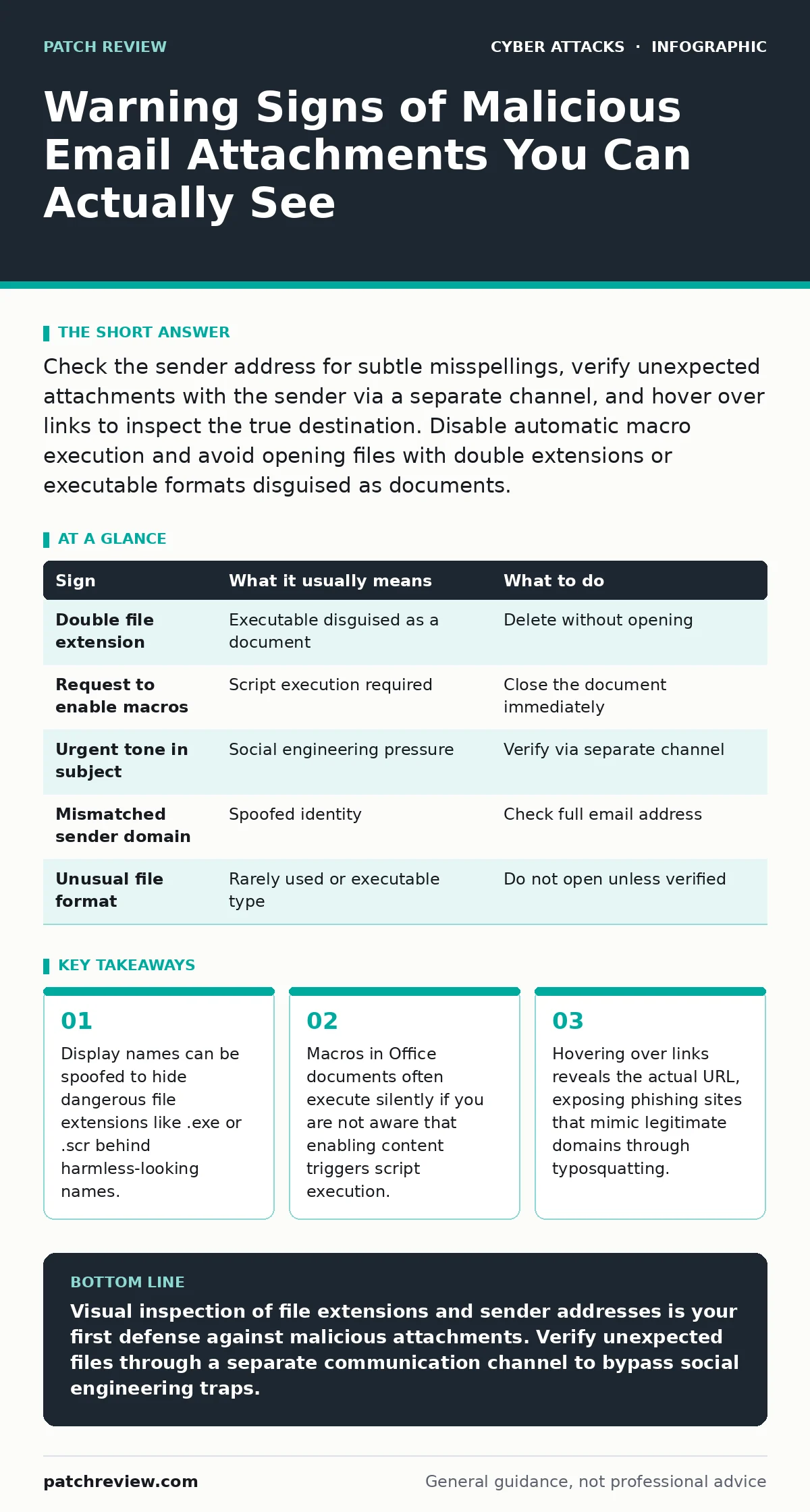
Check the sender address for subtle misspellings, verify unexpected attachments with the sender via a separate channel, and hover over links to inspect the true destination. Disable automatic macro execution and avoid opening files with double extensions or executable formats disguised as documents.
The Illusion of Safe File Names
Email clients often hide the true nature of an attachment by displaying only the primary name. You might see "Invoice.pdf.exe" displayed simply as "Invoice.pdf". This happens because the client truncates the extension or treats the secondary extension as metadata. When you download and save the file, the operating system recognizes the actual executable format. You then run a program instead of viewing a document. This trick relies on your assumption that the visual label matches the file type.
Always view the full filename before opening. Many email interfaces allow you to hover over the attachment or view properties to see the complete extension. If the file has two extensions, treat it as suspicious. The first extension is often a decoy designed to bypass your visual check. The second extension dictates how the system processes the data.
Macro-Enabled Documents
Office formats like Word and Excel can contain macros, which are small programs written in Visual Basic for Applications. These scripts can automate tasks but also execute malicious code. Attackers often disguise these files as urgent invoices, shipping labels, or legal notices. The email text urges you to "enable content" or "allow macros" to view the document properly. This instruction is the primary indicator of danger.
Legitimate documents rarely require macro execution to display text or images. If a document prompts you to enable content, close it immediately. The prompt exists because the file contains executable code that cannot run by default. Enabling it grants the script permission to interact with your system. This often leads to the download of additional payloads or the theft of credentials.
The Sender Address Deception
The display name in an email header is easy to spoof. An attacker can set the display name to "IT Support" or "CEO" while using a completely unrelated domain for the actual email address. You might see a message from "[email protected]" when the real address is "[email protected]". This subtle difference is often missed during a quick scan.
Always expand the sender field to view the full email address. Compare the domain part after the "@" symbol with the known legitimate domain of the organization. Look for misspellings, extra characters, or different top-level domains. If the domain does not match the official company website, treat the message as untrusted. Do not rely on the display name for verification.
Hidden Costs of Verification
Verifying an attachment by replying to the email is ineffective. If the email is malicious, the attacker controls the address you are replying to. They can confirm the attachment exists, reinforcing your false sense of security. This technique is known as confirmation bias exploitation. The attacker validates your action without revealing their identity.
Use a separate communication channel to verify. Call the sender using a known phone number or use an internal messaging platform. Do not use the contact information provided in the suspicious email. This breaks the chain of deception. It ensures you are speaking to the actual person who supposedly sent the file. This extra step prevents social engineering attacks that rely on urgency.
| Sign | What it usually means | What to do |
|---|---|---|
| Double file extension | Executable disguised as a document | Delete without opening |
| Request to enable macros | Script execution required | Close the document immediately |
| Urgent tone in subject | Social engineering pressure | Verify via separate channel |
| Mismatched sender domain | Spoofed identity | Check full email address |
| Unusual file format | Rarely used or executable type | Do not open unless verified |
The Role of Conditional Access
Even if you accidentally open a malicious attachment, other controls can limit damage. Conditional access policies restrict where and how you can access resources. These policies evaluate risk signals like device health and location. If you open a file on an unmanaged device, the policy may block access to sensitive data. This containment prevents lateral movement within the network.
Understanding how these policies work helps you appreciate why certain actions are blocked. It is not just about preventing the initial click. It is about limiting the blast radius of a successful attack. If your organization uses these controls, ensure your device remains compliant. Regular updates and approved software help maintain this trust level.
See also: Stop Cryptomining on Exposed Servers: Risks and Protection · Zero-click attacks: How invisible threats bypass your defenses
Beyond Basic Authentication
Strong authentication reduces the value of stolen credentials. If an attacker gains access via a malicious attachment, they need more than just a password. Passkeys provide a way to authenticate without sharing secrets. This method is resistant to phishing because the key is bound to the specific domain. Even if you click a bad link, the attacker cannot use the stolen session.
Implementing these stronger methods adds a layer of defense that survives user error. It shifts the burden from perfect behavior to technical resilience. You still need to avoid malicious files, but the consequence of a mistake is significantly reduced. This approach aligns with modern security frameworks that prioritize zero trust principles.
The Attack Lifecycle Context
A malicious attachment is just one step in a broader process. Understanding the attack lifecycle helps you see where this fits. The initial access phase relies on deception. Once executed, the malware attempts persistence and privilege escalation. Recognizing the attachment as the entry point allows you to focus on early detection.
Monitoring for unusual process creation can catch the aftermath of a click. Security tools look for scripts spawning command shells or network connections to unknown hosts. These behaviors indicate that the attachment has done more than just open. They show that the system is being manipulated. Early detection here limits the time an attacker has to operate.
Key takeaways
- Display names can be spoofed to hide dangerous file extensions like .exe or .scr behind harmless-looking names.
- Macros in Office documents often execute silently if you are not aware that enabling content triggers script execution.
- Hovering over links reveals the actual URL, exposing phishing sites that mimic legitimate domains through typosquatting.
Visual inspection of file extensions and sender addresses is your first defense against malicious attachments. Verify unexpected files through a separate communication channel to bypass social engineering traps.
Frequently asked questions
Can antivirus software detect all malicious attachments?
No, antivirus relies on known signatures and heuristics. New or customized malware may bypass these checks until a signature is created. Behavioral analysis helps but is not foolproof.
How do I report a suspicious attachment?
Use your organization's phishing reporting tool or forward the email to the security team. Include the full headers if possible. This helps analysts identify the source and block future attempts.
How this guide was produced: written by the Patch Review editorial team with AI assistance, checked against the public references listed below, and reviewed when the facts change. See our editorial policy or report an error.